
AI Body Swap: A Controlled Creator Workflow
Learn how to plan, generate, and review AI body-swap scenes while preserving character identity, perspective, lighting, and composition.
MakeCorn Editorial
Updated Aug 5, 2026 · Reviewed for responsible AI use
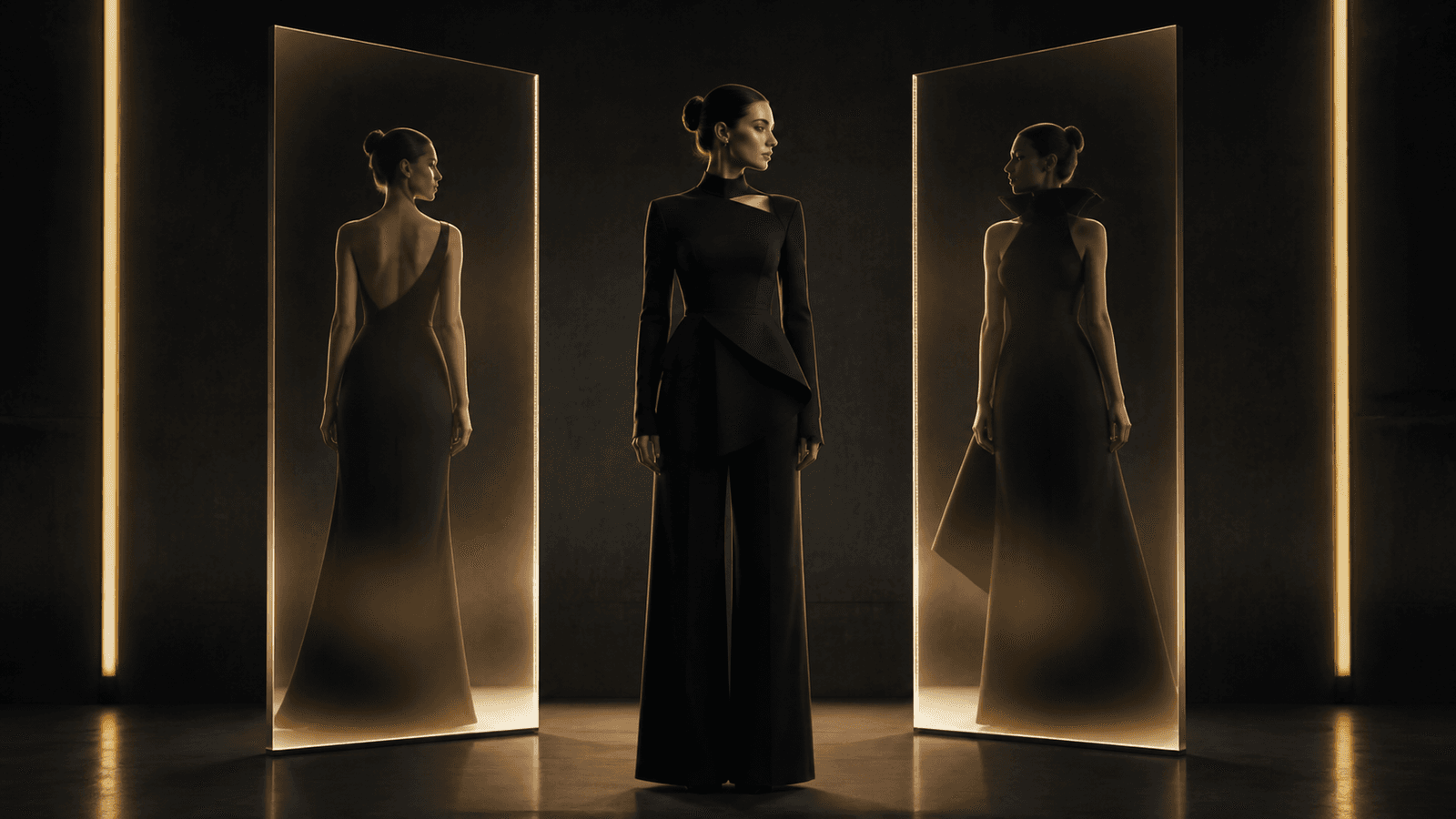
AI body swap technology allows you to seamlessly replace one person's body, face, or entire appearance in photos and videos with another person's likeness. Whether you are a content creator placing your AI influencer into any scenario, a marketer localizing ad creative for different markets, or someone exploring creative visual possibilities, AI body swapping has become remarkably accessible and realistic in 2026.
This guide covers everything you need to know -- how the technology works, step-by-step tutorials for both photos and videos, which tools to use for different scenarios, and professional tips for the most realistic results.
| Value | Metric |
|---|---|
| 3 | Swap Methods |
| 12s | Photo Swap |
| 4 | Video Tools |
| 300K+ | Creators |
What Is AI Body Swap Technology?
AI body swap technology uses deep learning models to replace one person's appearance in an image or video with another person's likeness. This goes beyond simple face swapping -- modern AI can transfer entire body characteristics, match skin tones, adapt to lighting conditions, preserve natural poses, and maintain realistic proportions.
How It Differs from Face Swap
Body Swap vs Face Swap
| Feature | Body Swap | Face Swap |
|---|---|---|
| Scope | Full body replacement | Face region only |
| Complexity | Higher -- full body, clothing | Lower -- face region |
| Use Cases | Complete character replacement | Headshots, portraits |
| Realism | Excellent for full-body | Good for frontal faces |
| Ideal For | Full-body shots, videos | Quick face-only changes |
The Technology Behind It
Modern AI body swapping relies on several interconnected technologies working together.
- Facial Recognition — Identifies facial landmarks and structure to accurately map one face onto another with precise alignment.
- Pose Estimation — Understands the pose and proportions of the original body to ensure the swap looks natural and anatomically correct.
- Image Inpainting — Fills in missing details where the original and new body differ in shape, proportion, or clothing.
- Style Transfer — Matches lighting, color grading, and skin tone between the source and target for seamless integration.
- Temporal Consistency — For video swaps, ensures the replacement remains stable across every frame without flickering or artifacts.
- AI Refinement — Final-pass cleanup that smooths edges, corrects color mismatches, and polishes the output to photorealistic quality.
AI Body Swap Methods on MakeCorn
MakeCorn offers several approaches to body and face swapping, each suited for different scenarios.
Method 1: Nano Banana Pro (Image Body Swap)
Nano Banana Pro — Image Swap
- Replace entire appearance in still images while preserving pose and scene
- Accepts two images: identity source and scene/pose target
- Intelligently combines face identity with target body position
- Matches lighting and style between source and target automatically
- Credits: 14 credits per generation
How it works: Upload your AI character image as the first image (identity source) and the target image containing the scene or pose you want. Write a prompt instructing the model to place the first person's identity into the second person's body and scene.
Example prompt:
Place the person from the first image into the exact pose, clothing,
and scene of the second image. Keep the face, identity, and physical
features from the first image. Match the lighting and style of the
second image.
Method 2: Subject Swap (Video Body Swap)
Subject Swap — Video Swap
- Replace a person in existing video with your AI character
- Preserves original motion, gestures, and scene dynamics
- Frame-by-frame analysis ensures temporal consistency
- Natural movement maintained throughout the output
- Credits: Varies by video length
Subject Swap is MakeCorn's video-based swapping feature. It replaces the person in a video with your AI influencer's likeness while preserving the original motion, gestures, and scene dynamics. The system analyzes the original person's position and movement in each frame, then seamlessly composites your character into the video.
Method 3: Face Swap (Face-Only Replacement)
Face Swap focuses specifically on the facial region, making it faster and ideal for scenarios where the body, clothing, and setting are already correct but you need a different face. It detects facial landmarks in both source and target, then maps the source face onto the target with automatic lighting, skin tone, and proportion adjustments.
For a complete overview of all video generation capabilities, see our AI video generation guide.
Step-by-Step Tutorial: AI Body Swap in Photos
Follow this workflow for the best results when performing an AI body swap in images.
Step 1: Prepare Your Images
Character image: clear, well-lit, front-facing or slight angle, face clearly visible, at least 1024x1024. Target image: clear body/scene, good lighting and composition.
Step 2: Open Image Generator
Log in to MakeCorn, go to your Dashboard, select Image Generator, and choose Nano Banana Pro as your model.
Step 3: Upload Both Images
Upload your character image as the first image (identity source) and the target scene as the second image. The order matters -- first image is always the identity source.
Step 4: Write Your Swap Prompt
Use a clear prompt specifying what to transfer and what to preserve. Include instructions about face identity, pose adoption, and lighting matching.
Step 5: Generate and Review
Check for face accuracy, natural body proportions, lighting consistency, and clean edge blending. Look for any visible seams or artifacts.
Step 6: Iterate if Needed
Adjust your prompt, try a different model like Qwen 2.0 Pro Edit for refinement, or use a different source angle for better results.
Swap Prompt Templates
Full body swap:
Transfer the person from the first image into the scene of the
second image. Use the face, identity, skin tone, and features of
the first person. Adopt the exact pose, clothing, background, and
setting from the second image. Make the result look natural and
photorealistic.
Partial swap (face + keep target outfit):
Replace the face of the person in the second image with the face
from the first image. Keep the clothing, pose, background, and
setting from the second image. Match the skin tone and lighting
naturally.
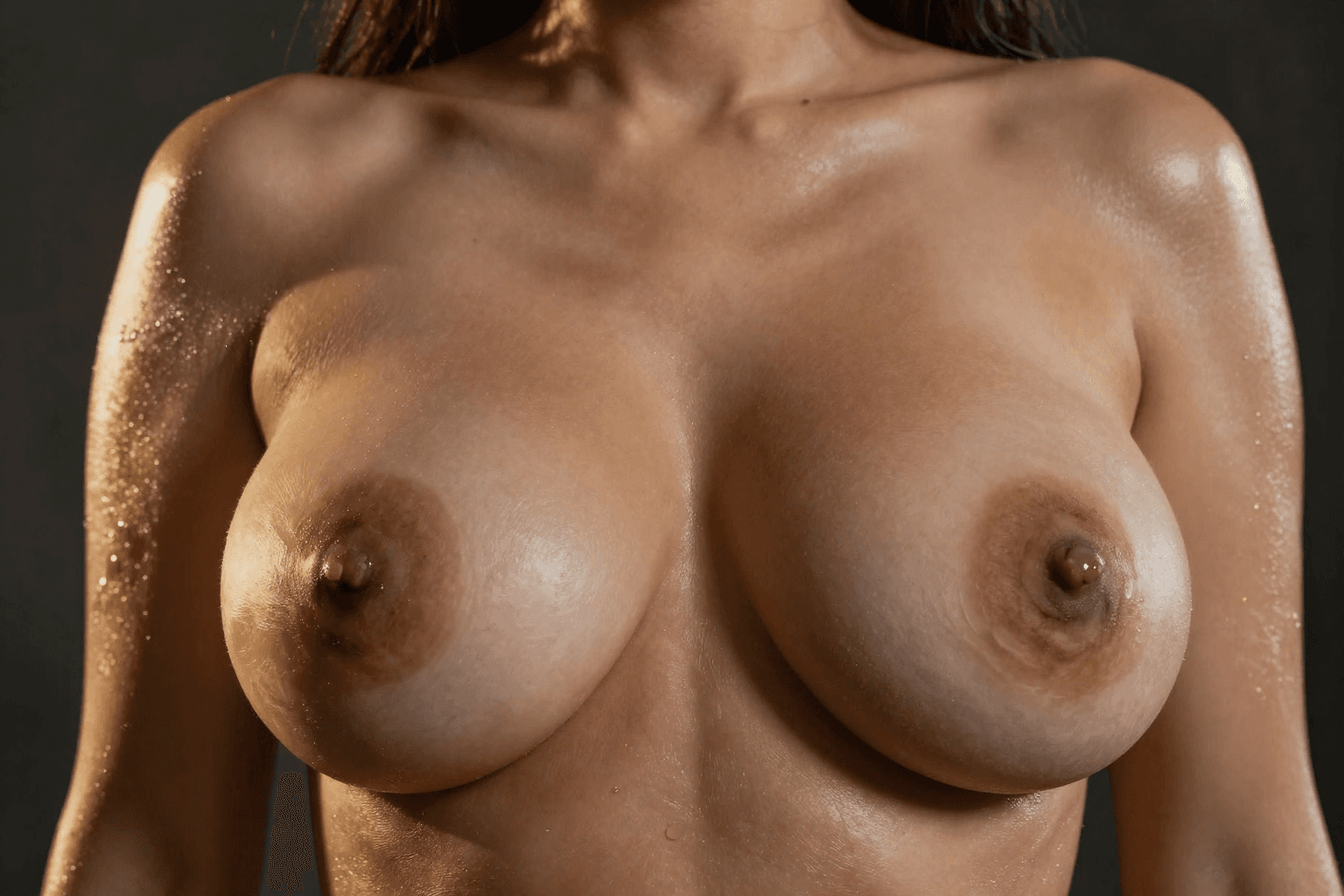
Step-by-Step Tutorial: AI Body Swap in Videos
Video body swapping requires temporal consistency -- the swap must look natural across every frame. MakeCorn offers three approaches.
Method A: Subject Swap (Easiest)
Step 1: Navigate to Video Gen
Open your dashboard and select the Video Gen section.
Step 2: Select Subject Swap
Choose Subject Swap from the available video generation tools.
Step 3: Upload Target Video
Upload the video where you want to replace the person. Shorter clips (5-15 seconds) produce the best results.
Step 4: Select Your AI Influencer
Choose your AI influencer as the replacement subject from your character library.
Step 5: Generate and Download
The system handles frame-by-frame replacement automatically. Review the output for consistency.
Tips for Best Subject Swap Results
Use videos where the person is clearly visible throughout. Avoid videos with rapid camera movements or heavy occlusion. Shorter clips (5-15 seconds) tend to produce the most consistent results. The original person's body type does not need to exactly match your character.
Method B: Motion Control Workflow (Highest Quality)
For maximum creative control over your video body swap, use the Motion Control workflow:
- Screenshot the first frame of your target video
- Use Nano Banana Pro to create a pose-matched image of your AI character matching that first frame
- Go to Video Gen and select Motion Control
- Upload your pose-matched character image as the Character Image
- Upload the original video as the Motion Video
- Generate -- Motion Control applies the motion from the video to your character
This method produces the highest quality results because your character is purpose-built to match the video's starting frame, resulting in smoother motion transfer.
For more on Motion Control capabilities, see our AI video generation guide.
Method C: Frame-by-Frame Face Swap
For videos where you only need to change the face:
- Navigate to Video Gen and select Face Swap
- Upload your source face image (clear, front-facing photo of your character)
- Upload the target video
- Generate -- the system replaces the face in every frame while preserving everything else
Tips for Realistic Body Swap Results
Lighting Matching
The number one factor in realistic swaps is lighting consistency. If your character image has studio lighting but the target scene is outdoors in natural light, the result will look unnatural. Use source character images with neutral or matching lighting whenever possible.
Angle Consistency
Face swaps work best when the angle of your source face roughly matches the angle in the target. A profile-view source face will not swap well onto a front-facing target. Prepare source images at multiple angles for maximum flexibility.
Resolution Matters
Higher resolution input images produce significantly better results. Upscale your source images before swapping if they are below 1024x1024 pixels.
Body Type Awareness
While AI can adapt to different body types, swaps look most natural when the source and target have somewhat similar proportions. Extreme differences can create uncanny results.
Color Harmony
Ensure the color palettes of your source and target images are compatible. A warmly-toned character image swapped into a cool-toned scene may look disconnected without additional color correction.
Pro Tip: Multi-Pass Refinement
For the most polished results, run a refinement pass after your initial swap. Use Qwen 2.0 Pro Edit with a prompt like "Clean up any artifacts, smooth skin tone transitions, and ensure lighting consistency across the entire image" to fix any remaining imperfections.

Use Cases for AI Body Swap
Content Creation
Place your AI influencer into trending video formats without filming. Create content in locations you have never visited. Produce multiple content variations from a single source. Participate in viral trends by swapping your character into popular templates.
For building a complete AI influencer content pipeline, see our how to create an AI influencer guide.
Fashion and E-Commerce
Virtual try-on: show how different outfits look on your AI model. Product photography: place your model in various settings and poses. Catalog generation: produce dozens of product images from a few base photos.
Entertainment and Social Media
Create engaging social media content with creative body swap concepts. Produce comedy and entertainment content with unexpected swaps. Generate shareable memes and viral content formats.
Marketing and Advertising
Localize ad creative by swapping models for different markets. Generate ad variations at scale for A/B testing. Create personalized marketing materials with consistent brand characters.
For monetization strategies, read our make money with AI influencers guide.
Comparing Body Swap Approaches
Body Swap Method Comparison
| Approach | Best For | Quality | Speed | Difficulty |
|---|---|---|---|---|
| Nano Banana Pro (Image) | Full body swap in photos | Very High | Fast | Easy |
| Subject Swap (Video) | Quick video character replacement | High | Medium | Easy |
| Motion Control Workflow | Maximum control video swap | Highest | Slower | Medium |
| Face Swap (Photo/Video) | Face-only replacement | High | Fastest | Easiest |
Ethical Considerations
Important Ethical Guidelines
Use only AI-generated characters or images you have rights to. Never swap real people's likenesses without explicit consent. Be transparent about AI use when publishing swapped content. Never create non-consensual, deceptive, or harmful content.
MakeCorn is designed primarily for use with AI-generated characters that you create and own. The platform's body swap and face swap features are intended for creative content production using your own AI personas. This approach reduces ethical concerns because you are working with characters you created rather than real people's likenesses.
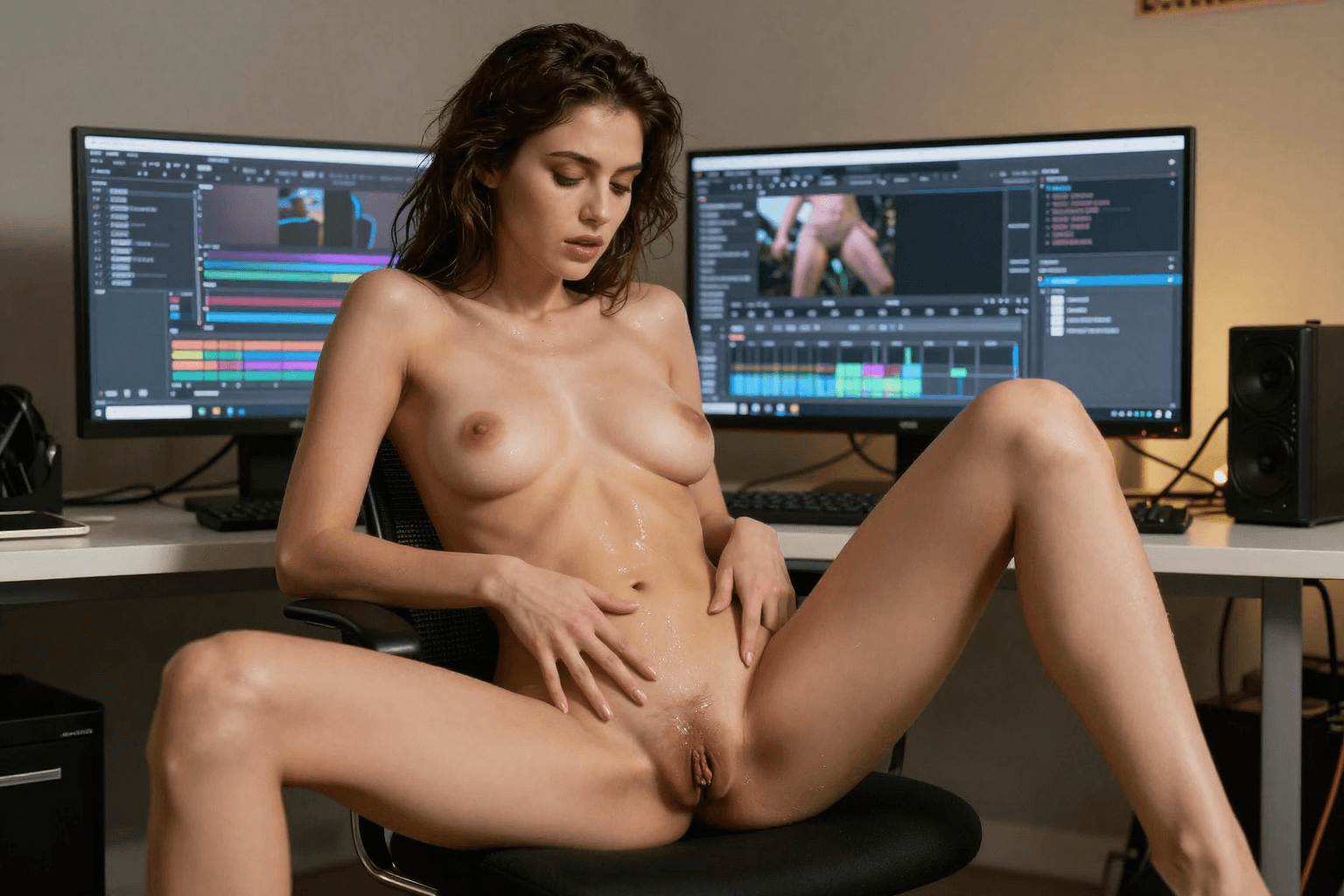
Troubleshooting Common Issues
The face does not look like my character
Use a clearer, higher-resolution source image. Try a more front-facing angle. Ensure the face is well-lit with no shadows obscuring features. Add "preserve the exact facial features and identity from the first image" to your prompt.
The swap has visible seams or edges
Run a second editing pass to smooth the result. Try Qwen 2.0 Pro Edit for a refinement pass. Ensure source images have similar lighting conditions.
The proportions look unnatural
Use source and target images with more similar body types. Add specific proportion instructions to your prompt. Try the swap with a different character pose.
Video swap flickers between frames
Use Subject Swap for more consistent frame-to-frame results. Ensure the video has stable, consistent lighting. Use shorter clips for best results. Avoid videos with rapid zooms or cuts.
For general image editing troubleshooting, see our AI image editing guide.
Frequently Asked Questions
What is the best method for a complete body swap in photos?
Nano Banana Pro with two input images produces the best results for full body swaps in still images. Upload your character as the first image and the target scene as the second image, then prompt the model to transfer identity while preserving the scene.
Can I swap my AI character into any video?
Yes, using Subject Swap or the Motion Control workflow. Subject Swap is easiest -- just upload your target video and select your AI character. The Motion Control workflow produces higher quality results but requires an extra step of creating a pose-matched starting image.
How do I maintain quality in video body swaps?
Use shorter clips (5-15 seconds) for best results. Ensure the source video has stable lighting and minimal camera movement. For the highest quality, use the Motion Control workflow where you create a pose-matched starting frame first.
Is AI body swap legal?
When used with AI-generated characters you created, yes. Never use body swap technology to create non-consensual content of real people. Always follow platform terms of service and local laws regarding AI-generated content.
How many credits does a body swap cost?
Image body swaps with Nano Banana Pro cost 14 credits per generation. Video swaps vary by length and method. Face Swap is the most affordable video option.
Can I do body swaps with my AI girlfriend character?
Absolutely. Body swap is one of the most powerful tools for AI girlfriend creators. Place your character into trending scenarios, different outfits, and varied locations to keep your content fresh and diverse.
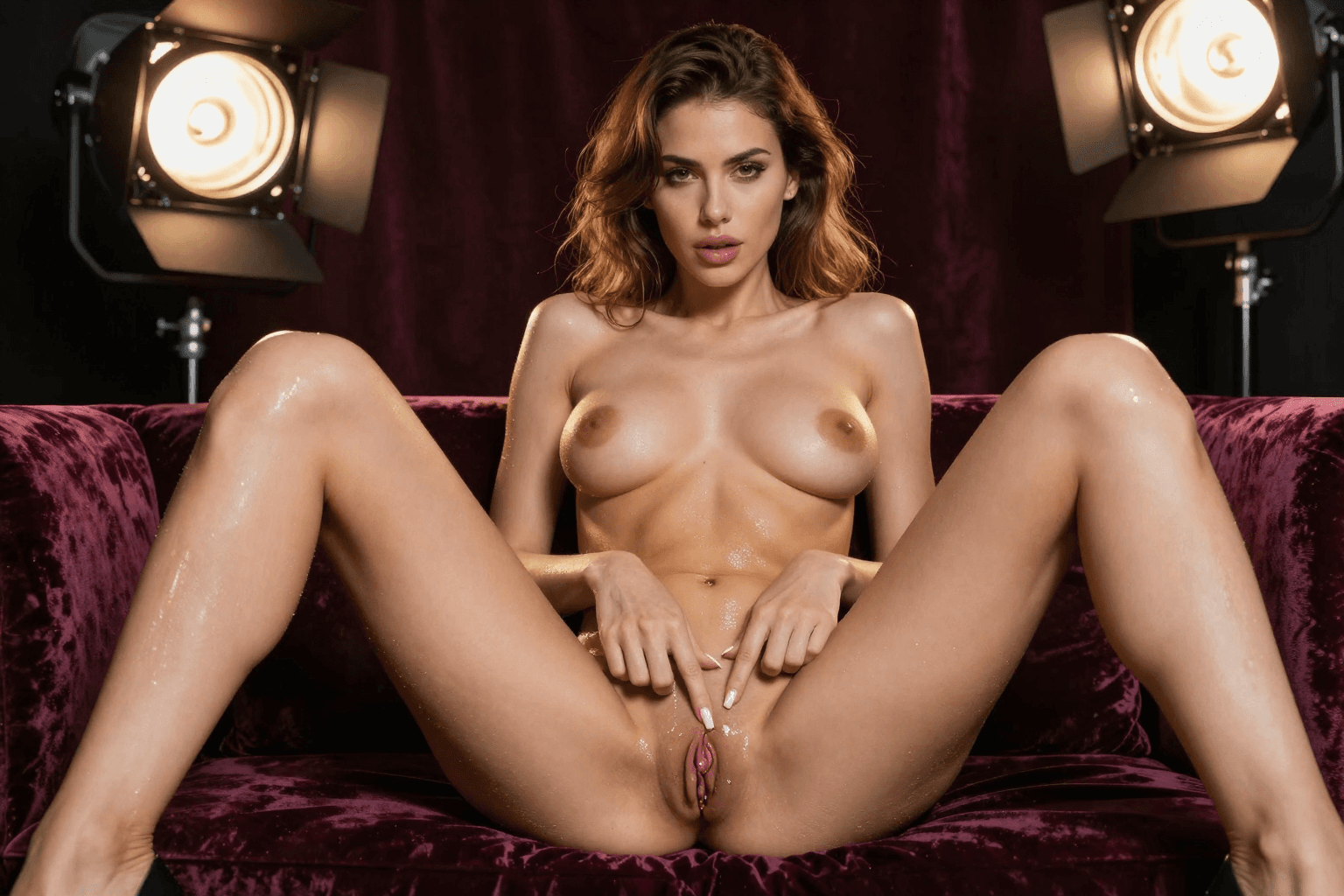
Get Started with AI Body Swap
AI body swapping opens unlimited creative possibilities for content creators, marketers, and artists. With MakeCorn, you have all the tools in one platform:
- Nano Banana Pro — Precise image-based body swaps with dual-image input for identity transfer.
- Subject Swap — Seamless video character replacement with automatic frame-by-frame processing.
- Face Swap — Quick face-only replacements in both photos and videos for rapid content production.
- Motion Control — Highest-quality video body swaps with full creative control over movement and pose.
Start by creating your AI character, then experiment with swapping them into different scenarios, poses, and settings. The more you practice, the better your results become.
Try AI Body Swap on MakeCorn -- create your character and start swapping in minutes.
New to MakeCorn? Start with our getting started guide for a complete walkthrough, or learn how to create your first AI influencer from scratch.
Questions, answered
Frequently asked questions
What is an AI body swap?
It is a synthetic editing workflow that transfers a fictional or permissioned adult character into a different pose or composition while trying to preserve visual identity.
Why do body swaps look inconsistent?
Perspective, pose, lighting, body proportions, and the reference image may conflict. Matching those inputs before generation improves continuity.
Should I edit an edited result repeatedly?
No. Start each major revision from the clean source so artifacts do not accumulate across generations.
Put the workflow into practice
Create original adult AI media with MakeCorn
Choose an image or video model, build a fictional adult character, and keep each generation under your control.
Try MakeCorn →Continue in Explore
Related adult AI niches
Jump into high-intent explore pages connected to this guide — styles, tools, and workflows ready to open in MakeCorn.
AI Body Editor
AI Body Editor on MakeCorn — original adult characters, uncensored AI images and video, and a simple workflow you can reuse.
AI Ass Enhancer
AI Ass Enhancer on MakeCorn — original adult characters, uncensored AI images and video, and a simple workflow you can reuse.
AI Body Morph
AI Body Morph on MakeCorn — original adult characters, uncensored AI images and video, and a simple workflow you can reuse.
AI Face Swap NSFW
AI Face Swap NSFW on MakeCorn — original adult characters, uncensored AI images and video, and a simple workflow you can reuse.
Porn Video Editor
A porn video editor powered by AI. Edit adult clips built from original characters — restyle, extend, re-light and lip-sync without filter blocks.
Nude Video Editor
A nude video editor for original adult characters. Edit, restyle and extend nude AI clips online without a filter blocking your export.
Keep reading
Related guides
Adult AI Creator Guides
AI Breast Editor: Controlled Image Editing Guide
Learn how to make controlled AI breast edits while preserving the character, pose, clothing, lighting, and surrounding composition.
Adult AI Creator Guides
AI Video Face Swap: Consistency and Quality Guide
Create more consistent AI video face swaps by matching references, motion, lighting, camera angle, occlusion, and frame-by-frame review.
Adult AI Creator Guides
AI Cleavage Editor Online: Natural-Looking Edit Workflow
A focused workflow for editing neckline, cleavage, and clothing fit while preserving character identity, fabric behavior, lighting, and perspective.