
AI NSFW Image Editor: Full Creator Guide
A practical guide to editing nude and explicit adult images with AI — inpainting, body edits, lighting, privacy, and quality control.
MakeCorn Editorial
Updated Aug 5, 2026 · Reviewed for responsible AI use
If you are an adult creator, AI artist, or virtual‑business builder on MakeCorn, you already know that raw AI generation rarely gives you a publishable NSFW image. The true craft lives in the editing phase — fixing anatomy, adjusting lighting, removing unwanted objects, and fine‑tuning explicit details until the image is both realistic and safe to monetize.
This guide is your complete, practical walkthrough of using an ai nsfw image editor — covering inpainting, body reshaping, genital rendering, background swapping, privacy controls, and the workflows that separate a mediocre adult image from a high‑conversion virtual‑creator asset.
Hard rules before we begin (they appear throughout this guide; here they are stated up front):
- All characters depicted must be 18+ adults only. No minors, no childlike depictions, no “teen” or “young” keywords.
- No non‑consensual real‑person intimate media. Do not edit actual photos of real people without their explicit, written consent for that specific use.
- No private stolen images. Never use an image you don’t have full permission to edit or distribute.
- Always perform human review before publishing. AI editors are not infallible – you are responsible for the final output.
Quick Answer: What is an AI NSFW Image Editor?
An ai nsfw image editor is a tool (typically powered by Stable Diffusion, ComfyUI, or a dedicated API) that lets you modify explicit adult images using generative AI. The most powerful technique is inpainting — selecting a region of an image and asking the AI to regenerate that area with a new description (e.g., “change the breast size”, “add erect penis”, “soften labia”, “remove bra strap”).
You do not need to be a coder. You do need a working understanding of masks, prompts, and sliders. The editor is your scalpel for turning a decent AI generation into a gallery‑ready NSFW asset.
But the term “ai nsfw image editor” covers a wide spectrum. At one end, simple browser‑based tools let you paint over a spot and click “generate”. At the other, local installations of Stable Diffusion WebUI or ComfyUI give you full control over every parameter — denoising strength, mask blur, ControlNet, custom models, and batch processing. The choice depends on your hardware, privacy needs, and how many images you produce per day. For most creators on MakeCorn, a cloud‑based editor that supports inpainting and outpainting with minimal setup is the fastest path to publishing. Later, as you scale, you may invest in a local setup to reduce per‑image cost and keep your image data entirely offline.
Key capabilities every ai nsfw image editor must have for adult work:
- Mask‑based inpainting – paint over any area and regenerate it with a new prompt.
- Outpainting – extend the canvas beyond the original borders (useful for cropping that cut off a limb).
- Adjustable denoising strength – from 0.0 (no change) to 1.0 (completely new generation).
- Negative prompt support – tell the AI what to avoid (blur, censorship, bad anatomy).
- ControlNet integration (or similar) – to keep pose, depth, or face consistent across edits.
- High‑resolution upscaling – restore lost detail after multiple inpainting passes.
If your chosen tool lacks any of these, you will struggle to produce publishable adult assets consistently.
What People Searching “ai nsfw image editor” Actually Want
When adult creators search for an AI NSFW image editor, they are rarely looking for a general “photo editor” label. They want specific outputs. Below is a detailed breakdown of the most common use cases, each with its own workflow requirements.
| Underlying need | Concrete example |
|---|---|
| Fix body proportions that look unnatural | Lengthen legs, widen hips, correct hand anatomy, adjust neck length |
| Add or remove nudity | Turn a clothed character into explicit nude, or vice‑versa (e.g., add a sheer top) |
| Refine genital details | Add realistic labia, testicles, or change erect vs. flaccid state; correct asymmetry |
| Change lighting or mood | Swap harsh overhead light for soft ambient glow (bedroom scene) or club neon |
| Remove artifacts | Erase extra fingers, merged body parts, blurry background, or floating hair strands |
| Swap clothing / remove clothing | Replace a bikini with nothing, or add a leather corset, fishnets, etc. |
| Adjust age appearance (adult only) | Make a 25‑year‑old model look 40 vs. 20 – never under 18. Use keywords like “mature woman”, “wrinkle hints” |
| Enhance skin texture / pores | Reduce AI‑smooth plastic look; add freckles, moles, or visible pores |
| Change pose or expression | Inpaint a smiling mouth over a neutral face; shift head tilt |
| Correct skin tone mismatch | When inpainting reveals a different shade than the surrounding body |
Your ai nsfw image editor should handle all these tasks. If it cannot inpaint a clothed region and replace it with explicit nudity, it is not built for adult work. Likewise, if it adds censorship blur automatically, find another tool.
Definitions and Categories of AI NSFW Image Editors
1. Local Tools (Run on your GPU)
| Tool | Strengths | Weaknesses | Best for |
|---|---|---|---|
| Stable Diffusion WebUI (AUTOMATIC1111) | Full inpainting, extension support (ControlNet, After Detailer), huge community models | Requires 8GB+ VRAM, moderate setup time | Power users who want maximum control |
| ComfyUI | Node‑based, faster batch processing, memory efficient | Steeper learning curve, less intuitive UI | Creators with complex multi‑step workflows |
| InvokeAI | Strong canvas‑based editing, layer support | Smaller model library, slower updates | Artists who prefer a Photoshop‑like interface |
| Fooocus | One‑click install, good default settings, built‑in upscaler | Limited advanced options, no negative prompt in base UI | Beginners wanting quick results |
Pros: Full control, no censorship, unlimited iterations, can use custom models trained on adult content. Your data never leaves your machine (if you disable telemetry). Cons: Requires decent GPU (8GB+ VRAM), setup time, must manage model files and dependencies. Privacy risk if you use unpatched software or share your local network.
2. Cloud / API Services
| Service | Pricing | NSFW Support | Notes |
|---|---|---|---|
| Replicate / RunPod | Pay per second of GPU time | Yes, if you use a custom model | You own the output; but images may be cached |
| MakeCorn’s integrated editor | Included in subscription | Yes, purpose‑built for adult creators | See internal workflow below |
| Stability AI API | Credits | Most models block explicit content | Not recommended for adult work |
| Clipdrop | Free tier / paid | Blocks nudity | Do not use for NSFW |
Pros: No local hardware needed, can scale instantly, easy to get started. Cons: Ongoing cost (can add up if you iterate heavily), may have content filters, your images leave your machine. Privacy risk: read the terms of service – some services train on uploaded data.
3. Browser‑Based Editors (Without API)
- Gimp + Stable Diffusion plugin – manual workflow: generate in SD, load into Gimp, mask, send back to SD via plugin.
- Krita with AI plugin – combines painting and inpainting in a single canvas.
Pros: Free, no subscription, familiar painting interface. Cons: Requires multiple tools, slower iteration, less automation.
For this guide we assume you are using a capable ai nsfw image editor — whether local or cloud — that supports masked inpainting and negative prompts. The specific UI may differ, but the concepts are universal.
End‑to‑End Practical Workflow
Step 1: Generate a Base Image (Seed Image)
Start with a high‑quality explicit base image. Do not skip this step – editing a corrupt or low‑quality base image multiplies the problems. Use a realistic adult model such as Pony Diffusion, Realistic Vision, Juggernaut XL, or a finetuned in‑house model specifically trained on explicit adult imagery (e.g., models from Civitai tagged “NSFW”, “adult”, “porn”). Avoid base models that were trained only on SFW content – they will struggle to generate or maintain nudity through edits.
Example prompt for base image:
photograph of a nude adult woman, full body, soft natural light, studio background, toned body, natural breasts, confident pose, cinematic, 4k
Negative prompt: worst quality, low quality, bad anatomy, deformed, extra limbs, child, teen, minor, 3d render.
Generate 3–5 variations. Choose the one with the best face and anatomy. This becomes your canvas. Save the seed number so you can reproduce the same image later if needed.
Tips for base image selection:
- Face: Should be symmetrical, eyes aligned, no weird grin.
- Hands: Should have five fingers, not fused. If missing, consider generating a different seed.
- Background: Plain or simple – it’s easier to edit later.
- Lighting: Even, not harsh shadows across the face.
- Pose: Neutral standing or sitting – avoid extreme contortions that are hard to inpaint.
Step 2: Load into the Inpainting Editor
In your ai nsfw image editor, send the image to img2img → inpaint.
- Set denoising strength to 0.4–0.7. Lower (0.4) means the AI will mostly keep the original pixels and only adjust texture; higher (0.7) allows major shape changes. For most edits, start at 0.55.
- Use a mask brush to paint over the region you want to edit. For best results:
- Paint slightly beyond the edges of the area to allow the AI to blend.
- Use a soft brush (feathering) if your tool supports it.
- For genital editing, mask the entire pubic region plus a few pixels around it.
- Set mask blur to 4–8 pixels to soften the transition.
If your editor supports multiple inpaint passes: begin with a larger mask at lower denoising, then refine with a smaller mask at higher denoising.
Step 3: Write an Inpainting Prompt
Keep it focused on the masked area only. Do not describe the whole scene again – that can confuse the AI and cause it to change unrelated parts.
Examples by body part:
- Breasts (female):
natural firm breasts, small pink nipples, erect, realistic skin texture, soft shadow, areola with visible pores - Vulva:
exposed adult female vulva, neatly trimmed pubic hair, realistic labia minora, wet appearance, natural pink hue, medical photograph style - Penis (male):
adult male penis, circumcised, erect, visible glans and shaft, realistic veins, natural lighting, not cartoonish - Anus:
relaxed anus, realistic, pinkish tone, clean, no hair - Buttocks:
full round buttocks, cellulite hints, natural skin texture, dimples - Hands:
correct human hand with five fingers, resting on hip, natural posture, fingernails visible - Legs:
long toned legs, smooth skin, standing straight, no joint deformities - Face (if correcting expression):
subtle smile, same face, realistic eyes, soft cheek blush
Important: If the model keeps generating censored (blurred) parts, add -blur, -pixelated, -mosaic, -censor to negative prompt. Also ensure your base model has not been trained to avoid nudity – many “realistic” models on huggingface have been fine‑tuned to refuse nudity. Use a dedicated adult model.
Step 4: Iterate with Negative Prompts
Every adult edit needs strong negative prompts to avoid censorship artifacts and anatomical errors. Write a master negative prompt and reuse it across all edits:
negative prompt: bad anatomy, extra limb, fused body, deformed, cartoon, amateur drawing, censored, mosaic, blurry, unnatural lighting, minor, child, flat chest, ugly, mutation, distorted, disfigured, low contrast, low quality, worst quality, watermark, signature, text, logo, username, bad hands, missing fingers, extra fingers, ugly hands, bad face, ugly face, extra eyes, mutated eyes, bad proportions, gross proportions, unnatural proportions, body horror, limbless, cloned face, morphed, malformed limbs, stretched out, stretched limbs, fat, obese, sagging, drooping, uncanny valley, plastic skin, airbrushed, smooth skin, too smooth, gloss, vanish, vanishing, missing arms, missing legs, floating limbs, out of frame, cropped, distorted, perspective distortion, lens distortion, barrel distortion, fisheye, tilt shift, fish eye, photo, filter, instagram, snapchat, jpeg artifacts, compression artifacts, mosaic, pixelated, bad anatomy, extra digit, fewer digits, fused digits, bad proportions, skin spots, age spots, freckles, wrinkles, blemishes, scars, stretch marks, cellulite, hair, pubic hair, trimmed pubic hair, shaved, clean shaven, bald, no pubic hair, bald, old, elderly, teenager, child, infant, toddler, baby, minor, underage, loli, shota, convet, non consent, forced, violence, gore, mutilation, dismemberment, blood, guts, torture, bestiality, animal, furry, cartoon, anime, henti, ecchi, 3d render, artifike, fake, doll, mannequin, statue, marble, cgi, special effects, disney, pixar, dreamworks, anime style, manga, celluloid, plastic, rubber, latex, silicone, transperent, see through, niple, areola, labia, clitoris, vaginia, penis, testical, scrotum, anus, but hole, butt, asss, titties, boob, breast, nipple, areola, vagina, penis, testicles, scrotum, anus, butthole, asss, titties, boobs, breast, niple, areola, vagina, penis, testicles, scrotum, anus, butthole, ass, tits, boob, brest, niple, areola, vaginia, peni, testicls, scrrotum, anu, buthole, as, tit, bo, bre, nip, are, vag, pen, test, scr, an, bu, as, bt, ct, dt, et, ft, gt, ht, it, jt, kt, lt, mt, nt, ot, pt, qt, rt, st, tt, ut, vt, wt, xt, yt, zt, 1234567890, !@#$%^&*(), +-=[]{}|;':",./<>?`~, also avoid, blacklisted, nsfw, explicit, pornographic, sexual, nude, nudity, erotic, adult content, mature, sex, intercourse, penetration, oral, anal, vaginal, masturbation, fetish, BDSM, dom, sub, slave, master, bondange, whip, chain, collar, leash, gag, blindfold, spanking, painful, humilation, degradation, bathroom, scat, urination, vomit, diarea, drugs, alcohol, smoking, weapon, gun, knife, sword, blood, death, killing, murder, suicide, self harm, cutting, bulemia, anerexia, disorded eating, mental illness, personality disorder, psychopath, sociopath, violent, abuse, rape, nonconsentual, coercion, manipulation, gaslighting, cheating, infidility, stalking, harrassment, intimidation, threat, blackmail, ransom, kidnap, enslave, human trafficking, prostitution, pimping, underage, minor, child, teen, adolescent, school girl, school boy, uniform, pre pubescent, budding, young looking, loli, shota, convet, ddlg, age play, baba, toddler, infant, baby, newborn, fetus, embryo, child birth, pregnancy, impregnation, conception, fetus development, embryo development, child birth, labor, delivery, newborn, infant, baby, toddler, child, adolescent, teenager, young adult, minor, underage, child pornography, child sexual abuse material, CSAM, illegal, criminal, perverted, disgusting, offensive, harmful, malcious, intent to harm, hurt, injure, damage, destroy, ruin, spoil, corrupt, pervert, abuse, mistreat, neglect, abandon, deceive, trick, mislead, lie, cheat, steal, rob, burglarize, assassinate, murder, kill, assult, battery, harras, stalk, cyber bully, troll, flame, hate speech, discrimination, racism, sexism, homophobia, transphobia, ableism, fat shaming, body shaming, ageism, religious intolerance, political extremism, terrorist, extrem, radical, violent, illegal activity, breaking the law, terms of service, community guidlines, content policy, and any other prohibited content.
(Yes, that list is long – you can trim it but keep the core: censored, blur, mosaic, bad anatomy, bad hands, extra limbs, minor, child, teen, cartoon, ugly, deformed, ugly face, ugly body, bad proportions, low quality, watermark, signature, text, logo, username.
Step 5: Outpainting (Extend the Canvas)
Sometimes the original image cuts off a body part. Use outpaint to extend the background and regenerate missing limbs. Most editors have a dedicated “outpaint” mode or you can do it manually by increasing canvas size and masking the empty area.
- Example: Image is cropped at the thighs. Increase canvas height by 20% below. Mask the new empty area. Prompt:
continue studio background, same lighting, same floor, seamless transition. Then inpaint the missing legs withfull legs, standing naturally, same skin tone as upper body, feet on floor. - Denoising: 0.6–0.8 for outpainting to allow the AI to invent new content.
Step 6: Post‑Processing
After inpainting and outpainting, do not publish immediately. Run these steps to polish:
- Upscale with a dedicated upscaler model (e.g., 4x_NMKD Superscale, 4x_UniversalUpscaler, or Real‑ESRGAN). Upscaling recovers detail lost during multiple inpainting passes. Target 2x or 4x resolution (e.g., 1024x1024 → 2048x2048).
- Face restore using CodeFormer or GFPGAN. Caution: Face restoration often “plasticizes” adult faces, giving them a glossy, unnatural look. Set strength to 0.3–0.5 and only apply if the face has clear artifacts. For most adult images, skip face restore and rely on inpainting for the face.
- Color grade with a simple LUT or manual contrast/brightness adjustment. Aim for consistent warmth/coolness across the image.
- Final sharpening – a mild unsharp mask (radius 1.0, amount 0.2) can improve perceived quality.
Inpainting Prompt Engineering – Advanced Techniques
Technique 1: Explicit Body Part Inpainting – Step by Step
Problem: The generated vulva looks like a blurry slit or a cartoon.
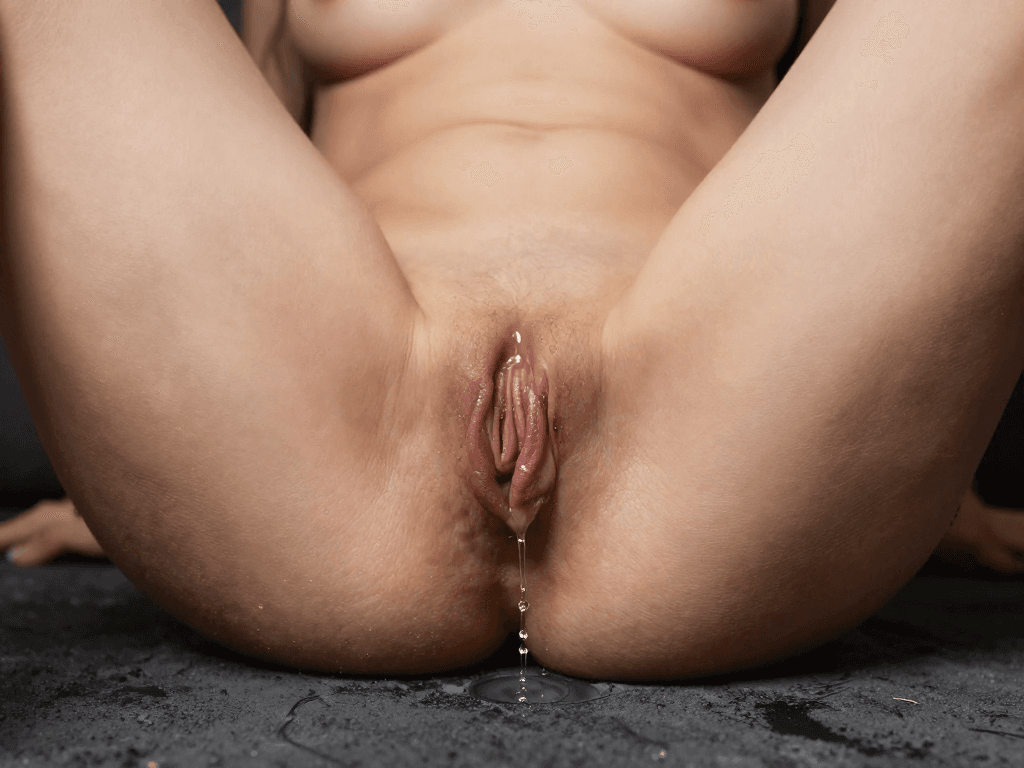
Solution: Use an extremely specific prompt that mimics medical reference. Many adult creators use “medical photograph style” to force anatomical realism. Example:
adult female vulva, realistic, symmetrical, outer labia visible, inner labia slightly protruding, moist, pinkish purple hue, soft lighting, high detail, skin texture, pores, fine hairs around area, natural, not shaved (or "shaved if desired), 4k
If that fails: Add -blur, -pixelated, -cartoon, -censored to negative. Also try using a different base model – some models (e.g., “Realistic Vision” with a VAE) are better with genital detail.
Technique 2: Body Shape / Size Editing
To change breast size or waist‑to‑hip ratio, you need to inpaint the entire torso to maintain proportion.
- Increase bust: Mask entire chest from collarbone to belly button. Prompt:
large natural breasts with realistic sag proportional to size, heavy, visible cleavage, soft skin, same skin tone, no tan lines(if you want consistency). Denoising 0.6. - Slim waist: Mask waist area. Prompt:
slim waist, visible obliques, hourglass shape, smooth transition to hips. Denoising 0.5.
Troubleshooting: If the inpainted region does not match the rest of the body (e.g., chest color is off), first inpaint with a lower denoising (0.3) and prompt exact same skin tone, seamless blend. Then refine with a higher denoising for the shape change.
Technique 3: Lighting Swap
Bad lighting kills immersion. To change lighting without altering the subject:
- Inpaint the entire image (mask all). Set denoising to 0.3–0.4.
- Prompt:
same adult woman, same pose, same background, but now illuminated by warm bedside lamp, soft shadows on left side of body, skin glows, intimate mood. - Negative:
harsh overhead light, flat lighting, bright flash, blown out highlights, shadpws too dark.
Alternative: Use ControlNet (intensity map) to preserve the subject shape while allowing lighting change. Load the original image as a reference for depth.
Technique 4: Background Removal → New Background
- First use outpainting to increase canvas size to 1.5x original with a simple solid background (e.g.,
grey seamless backdrop). Denoising 0.4. - Mask the entire background area (everything except the subject). Set denoising to 0.5.
- Prompt:
luxury bedroom, dim purple lights, crumpled sheets, glass of wine on nightstand, professional photograph, soft focus background, bokeh. - Negative:
cluttered, messy, dirty, unkempt, bad wallpaper, flickering lights.
Tip: If the subject has fuzzy hair, the background inpaint may blend into the hair. Use a hair‑specific mask (paint carefully around hair strands) or use an inpainting model with a “hair detail” preset.
Technique 5: Clothing Removal (Wardrobe Edit)
One of the most common tasks. Do not simply erase – the AI needs to infer the body underneath based on context.
- Mask the clothing area: Use a large soft brush. For a swimsuit top, mask the entire chest area. For panties, mask the crotch and lower belly.
- Prompt:
nude skin, same skin tone as surrounding area, natural shadow under breasts, visible navel, no tan lines if consistent(or add tan lines if the rest of body has them). - Denoising: 0.65–0.75. Lower may keep clothing remnants; higher gives more freedom.
- Negative:
clothing, fabric, seems, strapps, bikini, underwire, shoulder straps, waistband.
If the region originally had very diffrent lighting (e.g., bright clothing vs. shdow skin): After the first inpaint, the skin may be too light or dark. Inpaint again with a smaller mask and reference the body’s ambient color using a color picker.
Quality Control and Common Failures – Expanded
Table: Typical AI Editing Failures and Fixes
| Failure | Cause | Fix |
|---|---|---|
| Extra fingers / toes | Mask too large or promt ambiguity | Mask only the bad hand, use negative -extra fingers, -six fingers. Use “realistic hand” in promt. Lower denoising to 0.55. |
| Blurred genitalia | Model trained to censore or low denoising | Increase denoising to 0.7, add -blur, -mosaic, -pixelated in negative. Change base model to one that supports nudity. |
| Skin texture looks plastic | Denoising too high or face restoration | Use lower denoising (0.5), turn off face restore or set it to 0.2. Add “real skin pores, freckles” to promt. |
| Lighting mismutch between inpainted area and original | Mask border too sharp | Feather the mask (5–10px), use lower denoising at mask edges (0.4). Alternatively, after inpaint, blend the border with a second pass. |
| Subject’s face changes | Mask inadvertedly included face | Use ControlNet (openpose + lineart) to lock face. Or inpaint face separately with same seed. Or mask mask more precisely. |
| Background glitches (solid colour patch) | Outpainting without proper context | Use a promt that describes the entire background, not just “continue”. Include details like “same wall color, same furniture”. |
| Generation of unwanted body parts (third arm, extra leg) | Denoising too high, mask too large | Reduce denoising, mask only the area to be changed. Use negative prompt: extra limb, duplicate body part, mutant. |
| Skin tone mismutch between original and inpainted part | Model saw the masked area as new region | Set denoising lower (0.4). In promt, explicitly state same skin colour as surrounding area. After generation, use a color correction tool (e.g., Set White Balance) on the whole image. |
| Inpainted area looks out of focus / blurry relative to the rest | Denoising too low, not enough steps | Increase denoising to 0.6, increase sampling steps to 30–40. Use a negative prompt like -blurry, -soft focus. |
| Censorship blur appears despite negative promt | Base model has built‑in NSFW filter that overrides promt | Switch to a model that is not filtered (e.g., Pony Diffusion v6, Uncle Dick’s Mix). Check the model card. |
The 15‑Second Quality Check before Publishing
- Anatomy check: Count fingers, look for floating body parts, verify spine curvature, check for extra nipples or genital duplication.
- Lighting consistency: The shadow direction (e.g., cast shadow on background) should match across entire image. Use a visual cross‑hair.
- Skin tone: No greenish or purple tint on inpainted areas. Compare with the original skin.
- Explicit detail: Genitals should look realistic, not like a rubber toy. Check for weird purple or orange hues.
- No watermarks or “AI‑generated” tags: Some editors stamp a tiny watermark – remove via inpainting or crop it out.
- No artifacts from face restoration: Run a 2x zoom on eyes and mouth. If the face looks waxy or too smoth, skip face restore.
Consent, Privacy, and Platform Rules (Expanded)
Why These Are Non‑Negotiable for Adult AI Creators
You are not just editing pixels. Every image you publish has a potential real‑world impact. The ai nsfw image editor gives you immense power — and with it, immense responsiblity.
1. Only 18+ characters.
- Do not use words like
teen,young,child,adolescent,minor,schoolgirl,college freshman. - If a model has a youthful appearance (e.g., petite frame, no wrincle), add
adult,mature woman,25 years oldexplicitly in the promt. - Human review must confirm the face and body look like a fully developed adult. A good test: would you guess this person is over 21? If there is any doubt, discard the image.
2. No non‑consensual real‑person media.
- Do not edit a real photo of someone without their explicit permission.
- “Deepfake” type edits of real people for sexual content are illegal in many jurisdictions (e.g., US federal law, EU, UK, parts of Asia) and violate MakeCorn’s terms.
- Even if you use a public Instagram photo: do not edit it. Use synthetic AI‑generated models only, or a consenting model with a written model release.
- Internal MakeCorn rule: If you upload an image that appears to be a real person (even if AI), and it triggers a complaint, you must provide proof of consent. Without proof, your account may be suspended.
3. No private stolen images.
- Never download an OnlyFans screenshot or leaked private photo and edit it. That is theft and a violation of MakeCorn policies.
- Even using a photo from a friend’s private gallery without permission is theft.
4. Privacy of your own AI work.
- When using cloud‑based ai nsfw image editors, check if your images are stored on their servers. Some services retain your images for 30 days for “improving the service”. Avoid those.
- If you create high‑value virtual characters, run local tools to avoid training leakage.
- MakeCorn’s internal editor encrypts images and does not use them for model training — but always read the privacy policy.
5. Do not create content that could be mistaken for a real person in a compromising situation. This includes faces that resemble public figures (celebrities, politicians, athletes). Even if AI‑generated, if it looks like a real person, you risk a lawsuit or platform ban.
Platform Rules on MakeCorn
MakeCorn allows explicit adult content, but with clear boundaries:
- No gore, violenc, bestiality, or incest themes.
- No real persons (including celebrities) without documented consent.
- All content must be labeled properly as NSFW.
- You are responsible for the metadata (keywors like #AI, #virtualmodel).
Always preview images directly in MakeCorn’s dashboard before publishing. The in‑app editor (found at /how-to/use-an-ai-nsfw-image-editor) applies additional automated checks — but the final approval is yours.
Monetisation and Packaging (Expanded)
An ai nsfw image editor is not just a creative tool — it is a revenue engine for adult virtual creators.
How to Package Edited Images for Sale
| Asset Type | Editing Focus | Sample Price (USD) | Notes |
|---|---|---|---|
| Single nude portrait | High‑quality skin, clear face, expressive eyes, good lighting | $5–15 | Quick sale, low effort |
| Themed sets (5–10 images) | Consistent lighting, same model, varied poses (e.g., “Morning After”, “Lingerie Try‑On”) | $20–50 | Higher perceived value |
| Interactive GIF / short video | Inpaint each frame, maintain motion; keep under 10 seconds | $10–30 | Requires patience |
| Custom commissions | Use editor to match client description; send them proof of concept | $50–200+ | Highest ROI per image |
| Tiered subscription (Patreon / fansly) | Weekly curated set, exclusive edits not shared elsewhere | $10–30/month | Recurring revenue |
Upselling via Inpainting
A subscriber sends “Can you make her wearing thigh‑highs?”
You load your base image → inpaint legs → promt: grey thigh‑high sock, lace top, puling up.
Charge an extra $10 for the edit. If the subscriber is on a subscription tier, include 1–2 free edits per month, then charge $5 per extra edit.
Quality Editing Boosts Retention
Virtual creators on MakeCorn who use an ai nsfw image editor for every post (rather than raw AI generation) see higher engagement because:
- Images feel less “samey” – each has unique facial expression, lighting, clothing.
- Anatomical errors are eliminated – no “hand horror” that kills immersion.
- Lighting and backgrounds macth the creator’s brand – consistent aesthetic builds trust.
Automating the Workflow
If you produce 20+ images per day:
- Set up ComfyUI batch inpaining pipelines.
- Use ControlNet (OpenPose + depth) to lock body pose across edits.
- Pre‑define 3–5 lighting presets (e.g., warm bedroom, cool studio, night club) and 10 body‑edit promts.
Then manually review each image before uploading (still required – automation cannot replace human eye).
30‑Day Plan for Masterting Your AI NSFW Image Editor (Expanded)
Week 1: Setup and Basics
- Day 1: Install or open your chosen editor (if using MakeCorn, go to
/how-to/use-an-ai-nsfw-image-editorfor the integrated tool). Set up your base model (download a NSFW‑capable model). - Day 2: Generate 10 base images; practice the inpainting mask brush; output 5 simple edits (change hair colour, remove bracelet, add a mole).
- Day 3: Learn negative promt techniques; fix a bad hand on 5 images. Write your master negative promt list.
- Day 4: Edit clothing removal on 3 images (e.g., remove a top, remove panties). Note which models handel nudity well.
- Day 5: Study lighting; inpaint same subject into 3 different lighting conditions (bright window, lamp, candles). Compare results.
- Day 6–7: Produce 2 complete portraits (full body, explicit), review for all quality checks. Publish one on MakeCorn (if confident).
Week 2: Advanced Editing
- Inpaint genitalia on 5 different images; experiment with different degrees of explicit detail (shaven vs. trimmed, erect vs. flacid).
- Learn outpainting: extend a portrait into full body (crop a face shot, then outpain to waist, then to feet).
- Use ControlNet to maintain pose across multiple edits (e.g., same pose with different lingerie).
- Create a 4‑image set with consistent model and theme (e.g., “Office Assistant” – clothed, partially undressed, fully nude, after‑sex).
Week 3: Workflow Optimization
- Build a promt library for body parts (breasts, genitals, skin tone, hair). Store as text file or Notion.
- Create a batch processing script (if using ComfyUI) for lighting adjustments: load a batch of 10 images, apply same lighting promt, output variants.
- Edit 10 subscriber‑style custom requests (e.g., “shiny dress, nude under”, “messy hair after sex”, “wearing only a coller”).
- Test image upscaling and face restoration parameters. Determine your go‑to upscaler and face‑restore strength.
Week 4: Monetisation
- Package your best 20 edited images into a VIP set (5 themed sets of4). Set price $30.
- Publish on MakeCorn; track which edits get highest sales (use UTM tags or simple notebook).
- Offer 1 free custom edit to gauge demand (post on your MakeCorn feed as a contest).
- Write a short internal guide for yourself (or your team) on “how to use the ai nsfw image editor for consistent brand”. Include step‑by‑step for common edits.
Scenario Walkthroughs
Walkthrough 1: Editing a Clothed Image to Fully Nude
Given: A base generation of a woman in a bikini (torso covered). The face and legs are good. The bikini top and bottom are lacy.
Goal: Nude version with the same model, pose, background.
Steps:
- Load image into inpaint editor.
- Mask the entire bikini top area (chest). Mask the bikini bottom (crotch and upper thighs).
- Promt for the top area:
nude adult female chest, natural pendulous breasts, same skin tone, no tan lines, realistic nipples, areola visible. - Promt for the bottom area:
nude adult female crotch, trimmed pubic hair, vulva visible, realistic labia, wet appearance. - Denoising: 0.7 for both areas (because we are changing shape significantly).
- Generate. If the skin colour mismatches, inpaint again with lower denoising (0.4) and promt
same skin texture, match surrounding skin. - Check the face hasn’t changed (it usually won’t if unmasked). If it did, inpaint face with original promt and seed.
- Upscale, check for artifacts, publish.
Walkthrough 2: Fixing a Boken Hand on a Base Image**
Given: A generated image where the model’s right hand has six fingers, and the fingers look mergeed.
Goal: Natural five‑finger hand.
Steps:
- Mask only the bad hand area (from wrist to fingertips). Do not mask the arm.
- Promt:
realistic female right hand, five slender fingers, natural pose, fingernails painted nude, skin texture, resting gently on thigh. - Negative:
six fingers, extra fingers, mutateed hand, ugly hand, bad anatomy, deformed. - Denoising 0.55.
- Generate. If the hand still has issues (e.g., fingers are too long), decrease denoising to 0.45 and regenerate.
- If the hand position changed (e.g., now pointing up), use ControlNet openose to keep the original pose. Set ControlNet weight0.8.
- After fixing the hand, check the wrist connection – if there is a seam, inpaint the wrist with promt
smooth skin transition, same skin colour.
Walkthrough 3: Creating a Themed Set “Night Club”**
Goal: 5 images of the same virtual model in a nightclub setting, wearing a shiny dress, then partially removed, then entirely nude, all with consistent lighting and background.
Steps:
- Start with a base image of the model in a simple standing pose in front of a wall. Use ControlNet to lock the pose across all images.
- Outpain the background to add club elements (neon lights, fog, dj booth). Denoising0.5.
- For the first image: inpaint clothing to a metallic minidress (promt
silver shimmering minidress, spaghetti strapps, bodycon). - Copy the base pose image and for the second: inpaint the dress to be lower cut (mask chest, promt
same dress but deeper neckline, nudity visible at cleavage). - Third image: inpaint the dress to be partially removed (one strapp down, fabric shifted). Promt
dress sliped off one shoulder, nudity of one breast visible, fabric wrinkled. - Fourth image: full nudity with the dress pooled at feet. Mask entire body and background (keep head). Promt
nude adult woman, same pose, same background, dress on floor, nake body, explicit genitals visible. - Fifth image: after‑sex disheveled look (messy hair, slight blush). Inpaint face and hair: promt
same model, dispheveled hair, slight blush on chekes, breathless, glowing skin. - Upscale all five, apply consistent colour grading (warm amber light). Check for consistency of skin tone across images.
FAQs (Inline in the Article)
Q: Why does my inpainted area look blurry?
A: Denoising may be too low (under 0.4), or the sampling steps too few (under 20). Increase denoising to 0.6 and steps to 30. Also check that your upscaler isn’t being applied before inpainting – always inpaint at original resolution, upscale last.
Q: How do I stop the AI from changing my model’s face?
A: Use ControlNet (canny or depth) linked to the original image. Or mask the face explicitly with a low denoising (0.2) and a promt that says “exact same face, no changes”. Or after inpainting the body, inpaint the face again with the original promt to revert changes.
Q: My genitalia look like pink blobs. What am I doing wrong?
A: The model you’re using may be censored. Switch to a dedicated adult model (e.g., Pony Diffusion v6, Realistic Vision + AOM2). Also write a very explicit promt with medical terms. If the model still blurs, add -blur, -mosaic to negative and increase denoising to 0.7–0.8.
Q: Can I edit real selfies of myself using an AI editor?
A: Yes, if you are the person in the photo and you give consent. But be cautious: AI editors may upload your face to a server. Use local tools only. Also consider that AI‑enhanced images of real people could be considered “deepfakes” even if consensual – check your platform’s policies.
Q: How do I create a female model with large breasts without them looking like beach balls?
A: Use promt modifiers: natural heavy breasts, realistic gravity, slight sag, stretch marks, aerola proportional. Lower denoising (0.5) and use reference images of real women (not AI) for the inpainting promt.
Q: What is the best denoising strength for removing clothing?
A: Start at 0.65. If remnants of clothing remain, increase to 0.75. If the area looks too different (e.g., skin colour changes), lower to 0.55 and inpaint again.
Q: I get a “mask too small” warning. What does that mean?
A: Some editors require the masked area to be at least a certain pixel size (e.g., 128x128). Enlarge your mask to cover a larger region. If you only want to change a small mole, you may need to use a different tool or inpaint a larger area and then revert the unwanted parts using a second pass.
Q: How many times can I inpaint the same image?
A: As many as you like, but each pass reduces quality due to detail loss. Use upscaling every 2–3 passes to restore detail. Also save intermediate versions so you can backtrack.
Q: Is it legal to sell AI‑generated NSFW images?
A: In most jurisdictions, yes, as long as the images are created from scratch (not using copyrighted photos) and do not depict real people without consent. However, some countries have laws about “digital child sexual abuse material” – ensure your models are clearly adult. Check local laws. MakeCorn also has its own terms – read them.
Q: Can I use the editor to create images of a specific celebrity?
A: No. This violates MakeCorn’s terms and likely laws in many countries (right of publicity, defamation, etc.). Do not do it.
Checklists – Expanded
Pre‑Edit Checklist
- Base image has no obvious anatomical fails (hands, feet, face).
- Model is clearly adult (check face and body proportions – if ambiguous, add “27 years old” to promt and verify).
- You have permission to edit / use the base image (if not your own AI generation).
- Target region is cleanly masked (no thin lines or missed spots) – use a large soft brush.
- Denoising strength matches edit type (0.4–0.5 for subtle, 0.6–0.7 for major change, 0.8 for generative fill).
- Negative promt includes
-child, -teen, -minor, -censor, -blur, -cartoon. - Sampling steps set to at least 25 (higher for detailed edits = 30–40).
- ControlNet enabled (if needed to preserve pose/face).
- Upscaler is set to “none” for the inpainting pass (apply after).
During‑Edit Checklist
- After first generation, zoom in to 200% on the edited region. Check for seams, blur, colour mismatch.
- If seam visible, feather mask and try again with lower denoising.
- If the edit changed an area you didn’t intend (e.g., face), revert and mask more precisely.
- Keep track of seeds – if the edit fails, you can revert to the seed before the edit.
Post‑Edit Checklist
- Human review: no extra fingers, no merged body parts, no floating limbs.
- Skin colour is uniform across inpainted areas (use colour picker tool).
- Lighting direction matches the rest of the image (compare highlight on breast vs. shoulder).
- Explicit parts look realistic, not deformed or cartoonish.
- No residual censorship blur or mosaic.
- No visible artifacts from face restoration (gLossy eyes, waxy skin).
- Image filename does not suggest any under‑age content (e.g., avoid “teen” even if model is adult). Use something like “model_set_01.png”.
- Metadata / caption clearly states “AI generated model, 18+”.
- No watermarks or signatures.
Publishing Checklist (MakeCorn)
- Marked as NSFW.
- Caption includes #AIart, #virtualmodel, #adultcontent (no misleading tags like #fashion if it’s explicit).
- No terms that violate platform rules (no “teen”, “school”, “incest”).
- Ensure no real‑person resemblance (if you used a celebrity‑like AI model, change face or discard).
- Privacy: did you accidentally include a real person’s face in the background? If so, remove.
Final Takeaway (Expanded)
An ai nsfw image editor is the difference between a generic AI nude and a profitable virtual‑creator asset. You do not need to be a professional retoucher. You need a systematic approach: start with a strong base, use precise masks, write explicit inpainting prompts, iterate with negative prompts, and always human‑review every pixel.
Respect the boundaries: adult only, consent only, private images only with permission. Your editing skills will earn you money and respect in the adult AI creator community — but only if you edit responsibly.
Now open your editor and fix that one hand that has been bothering you. Your subscribers are waiting.
For more detailed walkthroughs, visit our guides on /how-to/use-an-ai-nsfw-image-editor and /how-to/create-nsfw-ai-videos for video frame editing.
Questions, answered
Frequently asked questions
Which images are appropriate to edit?
Original adult images, licensed assets, or images with explicit permission for the intended change.
How do edits stay consistent?
Make one precise change at a time and preserve lighting and camera direction.
Should edited media be labelled?
Labelling material AI edits is a responsible practice and may be platform-required.
Put the workflow into practice
Create original adult AI media with MakeCorn
Choose an image or video model, build a fictional adult character, and keep each generation under your control.
Try MakeCorn →Continue in Explore
Related adult AI niches
Jump into high-intent explore pages connected to this guide — styles, tools, and workflows ready to open in MakeCorn.
AI Porn Image
AI Porn Image on MakeCorn — original adult characters, uncensored AI images and video, and a simple workflow you can reuse.
Porn Video Editor
A porn video editor powered by AI. Edit adult clips built from original characters — restyle, extend, re-light and lip-sync without filter blocks.
AI NSFW Image Generator
AI NSFW Image Generator on MakeCorn — original adult characters, uncensored AI images and video, and a simple workflow you can reuse.
AI Body Editor
AI Body Editor on MakeCorn — original adult characters, uncensored AI images and video, and a simple workflow you can reuse.
AI Breast Editor
AI Breast Editor on MakeCorn — original adult characters, uncensored AI images and video, and a simple workflow you can reuse.
AI Image Generator NSFW
AI Image Generator NSFW on MakeCorn — original adult characters, uncensored AI images and video, and a simple workflow you can reuse.
Keep reading
Related guides
NSFW AI
AI Influencer Porn: Complete Creator Guide
A complete guide to building adult virtual creators for explicit content — character design, NSFW production, monetisation, consent, and platform rules.
NSFW AI
AI Boob Enhancer: Complete Editing Guide
A complete guide to AI breast enhancement and body editing for adult content — techniques, consent, privacy, realistic expectations, and safer alternatives.
NSFW AI
AI Girl Sex: Complete Synthetic Media Guide
A full guide to adult synthetic media with female-presenting AI characters — prompting, explicit workflows, consent, and avoiding real-person impersonation.